


To demonstrate how to load and run LISP scripts in nanoCAD Platform let’s create simple script that will clean drawing using some Platforms utilities.
Base of this script is commands that was tested in: Virtual command (macros) How to Create a Virtual Command in nanoCAD to Automate Drawing Cleanup
The text of this script is:
(defun c:clean_dwg ( / )
(command "-purge" "All" "*" "No")
(command "flatten" "All" "")
(command "audit" "Yes" "No")
(command "auditgeometry" "audit_Z_coordinates" "Yes(fix_errors)")
(command "auditgeometry" "audit_hatches" "Yes(fix_errors)")
)
princ("This script calls sequentially: -purge, flatten, audit and auditgeometry to clean the drawing from wasted objects. To start cleaning run command: CLEAN_DWG")
(princ)
To open Script Editor open:
(Ribbon) Manage -> Script Editor
(Classic) Tools -> Scripts -> Script Editor
(Console command) SCRIPTED
then past here script text described earlier.
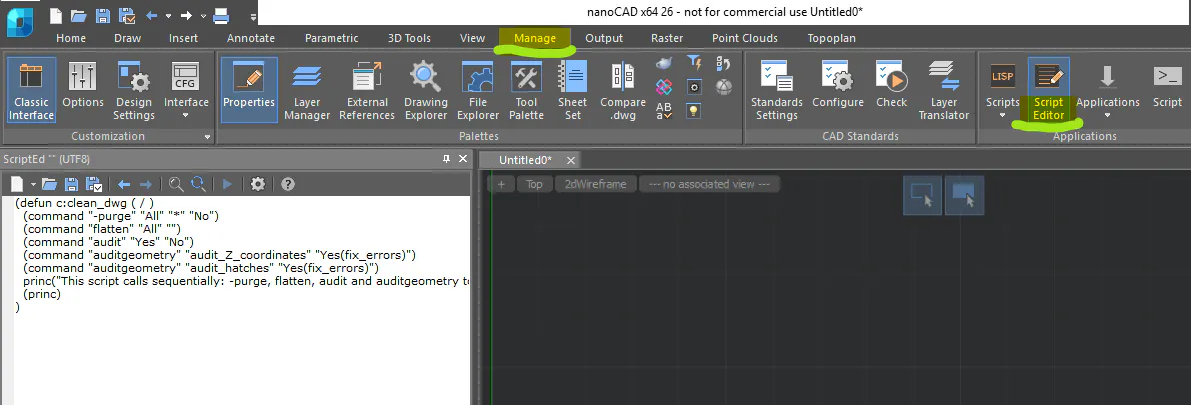
As you can see, text here is not wrapped and goes beyond the working window borders.
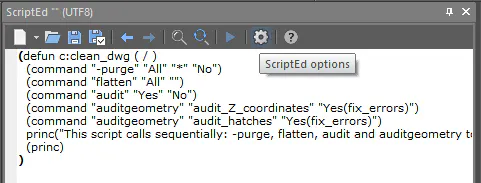
It’s easy to solve: open ScriptEd options:
select tab Options and check Word wrap:
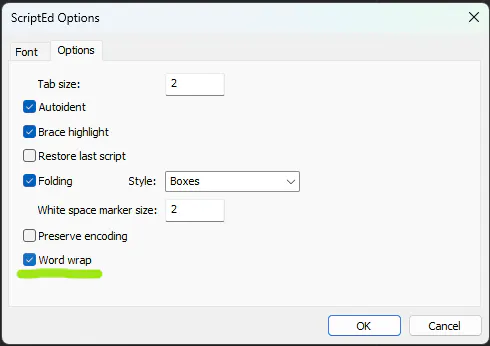
Now all scripts text is visible within the working window.
To run this script from Script Editor I just need to press “Run script” button on the top. But it’s not active at the moment. This is because script was not saved and stored as a file. So press “Save script” icon, then select folder where to save and finally name it as “clean_dwg.lsp”. Now appearance of the text in working window changes and button “Run script” is active:
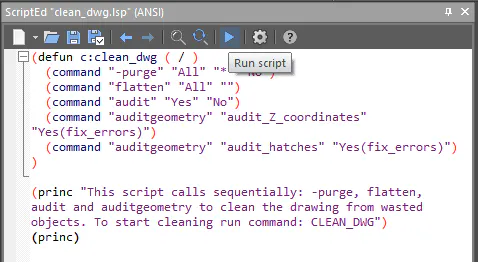
After pushing “Run script” in platforms Command Line appears message, that confirms script is loaded and defined function CLEAN_DWG is ready to be launched.
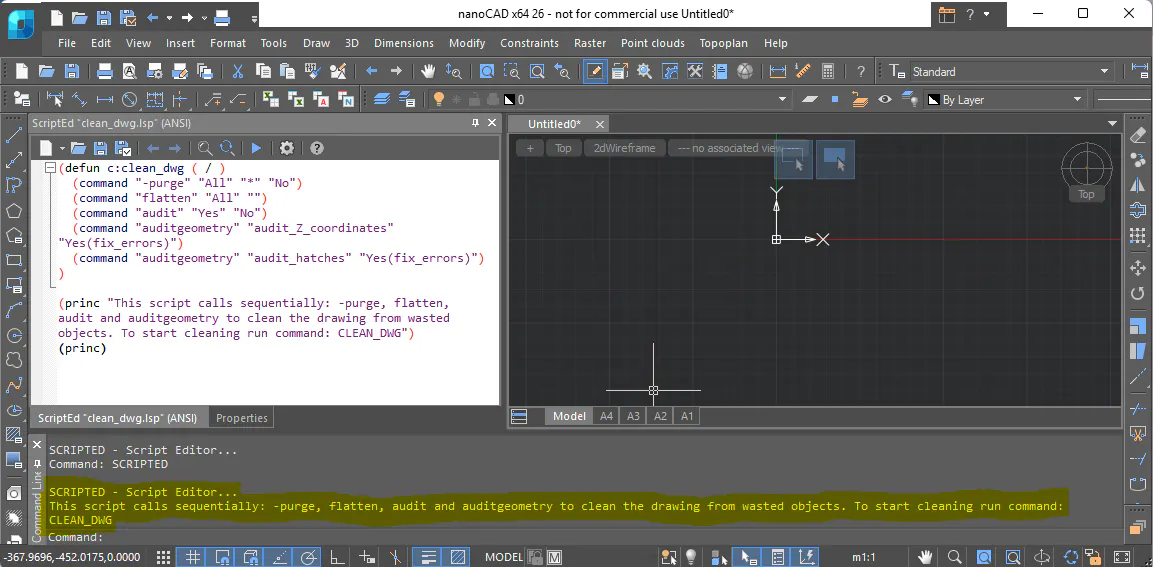
To start function call it from Command Line:
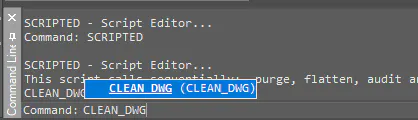
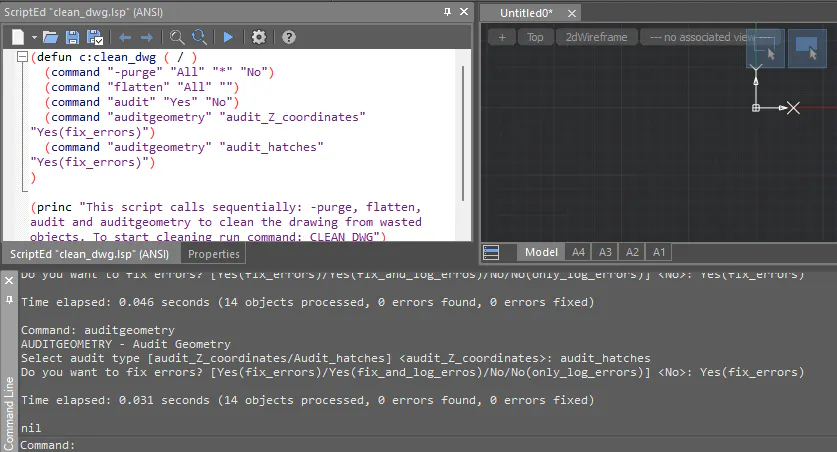
Check that its working:
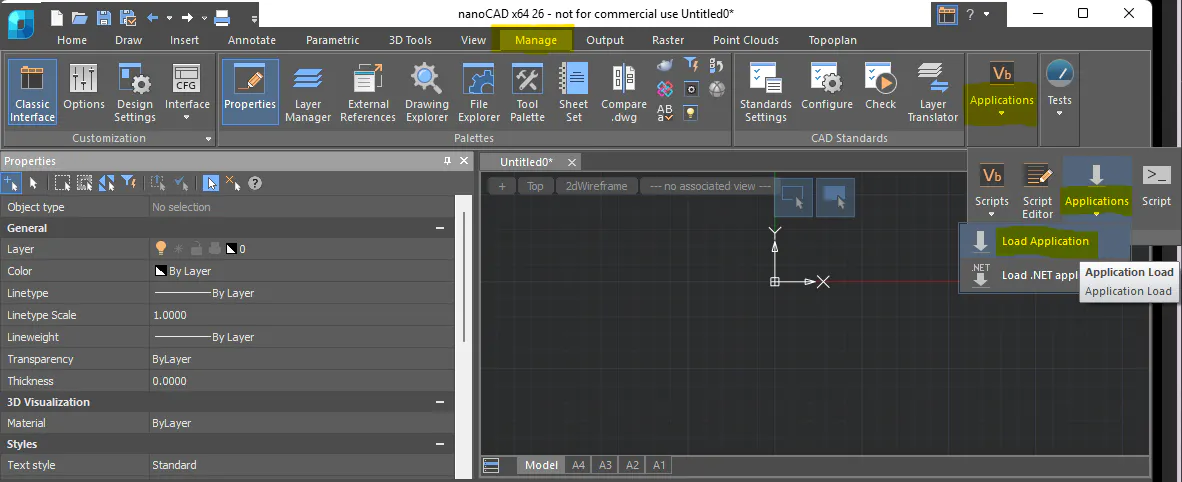
To use APPLOAD:
(Ribbon) Manage -> Applications -> Applications -> Load Application
(Classic) Tools -> Application -> Load Application
(Console command) APPLOAD or -APPLOAD
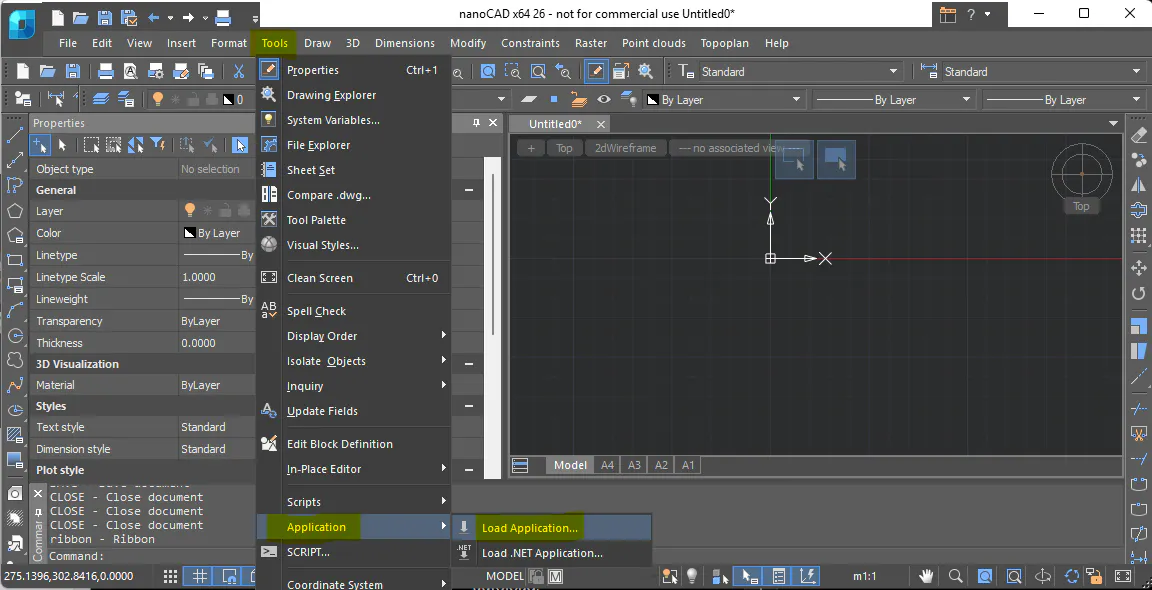
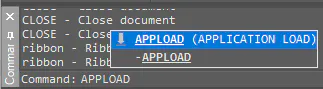
Call command APPLOAD, then select file with your script and check that status is “… successfully loaded”.
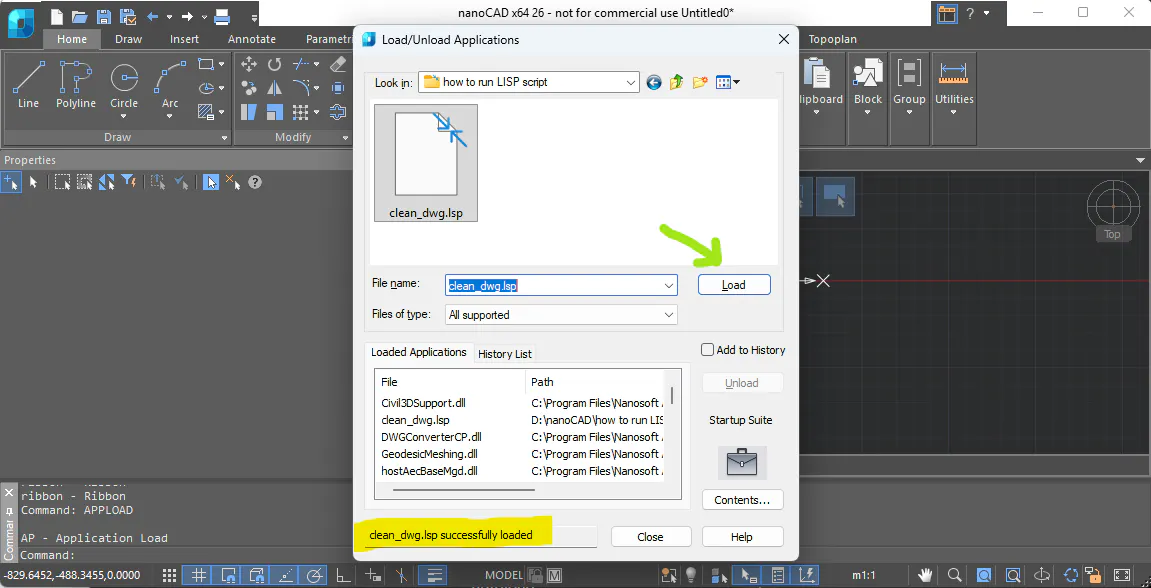
After that click “Close” and script will be immediately executed.

This method is very simple and useful.
However, if you restart platform, this you need to load script again as it’s not loaded automatically.
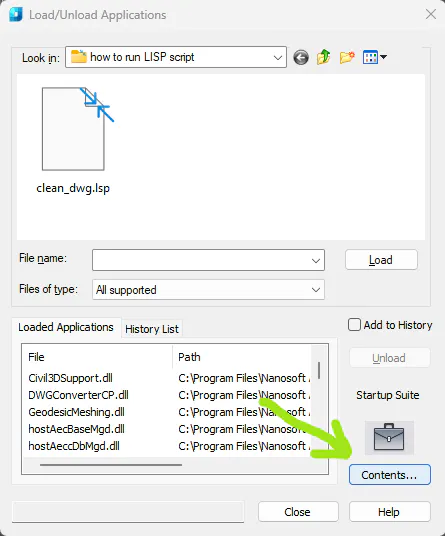
If you need this script to be loaded automatically, then you need to use APPLOAD -> Contents
This method is useful to load your scripts automatically.
To use it call dialog window Load/Unload Applications, as it described above, for example, simply call APPLOAD in Command Line. Then in appeared dialog window click “Contents”:
Then click “Add”:
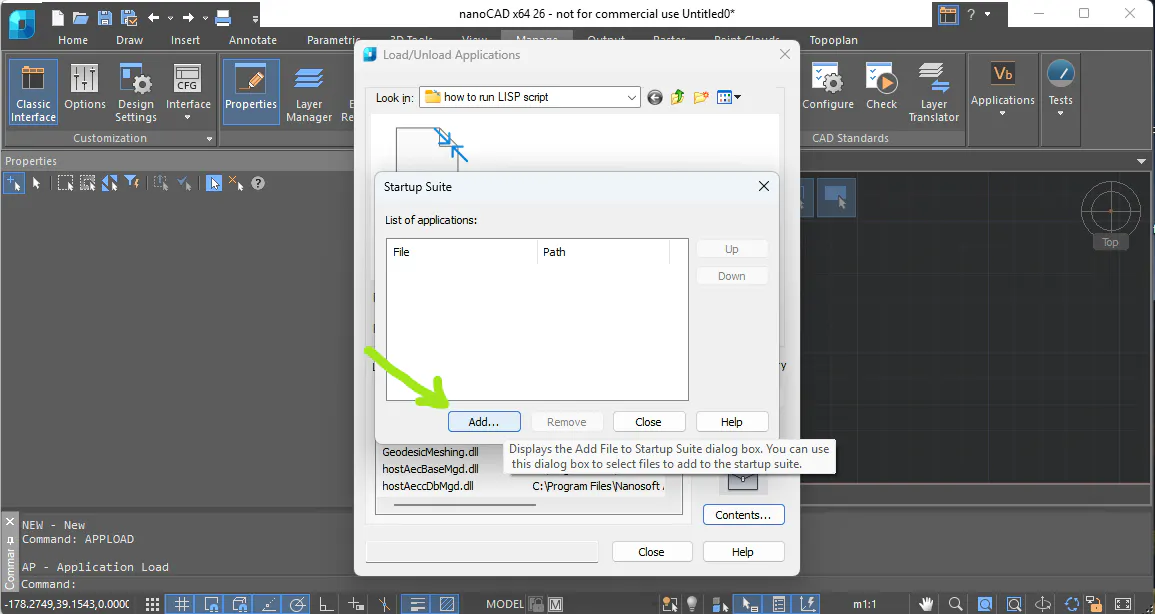
Select your script file and click “Close”.
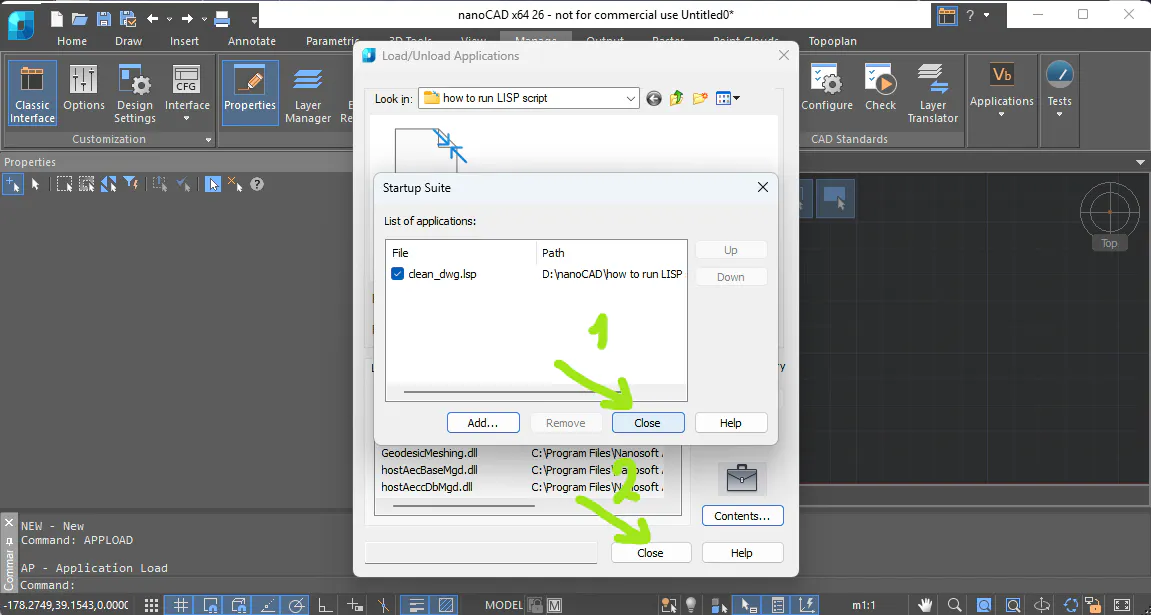
You will see in Command Line that … script is not loaded.
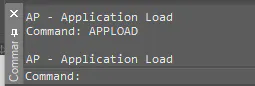
This is because script file added to the list, that will be loaded on start of the platform, but not immediately. So, if you need this just now, then simply load it in this dialog window, as it describes above, using APPLOAD and "Load" button in dialog window:
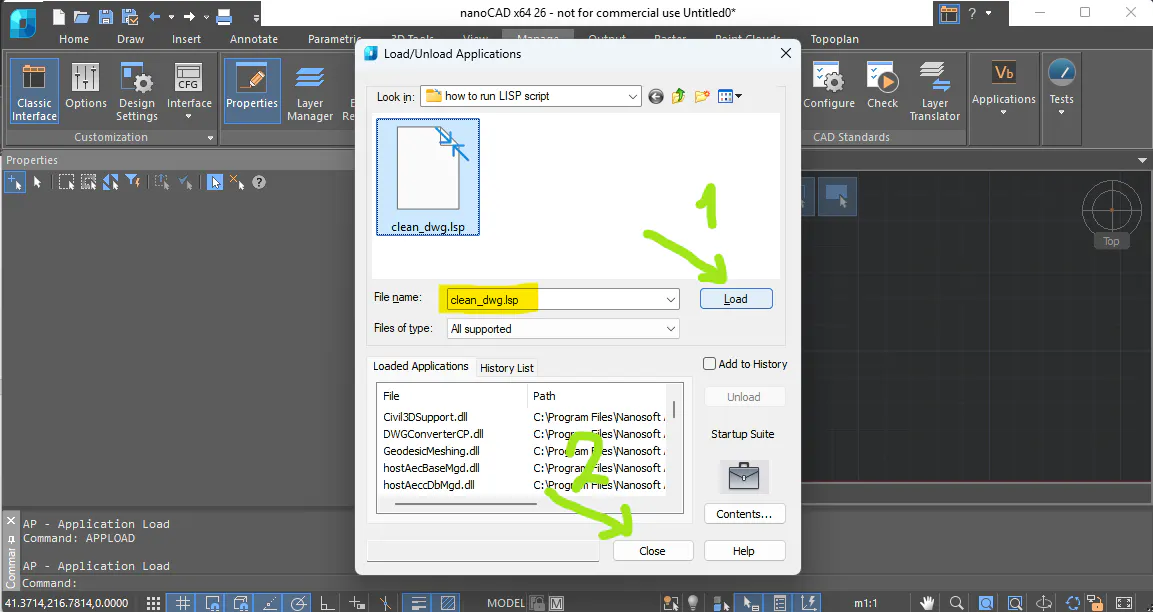
This time script will also be executed:

And after the platform will be restarted, this time, script will also be executed automatically without need to load it again.

But remember, that file with this script should always stay on the same path, you used when register it in Contents!
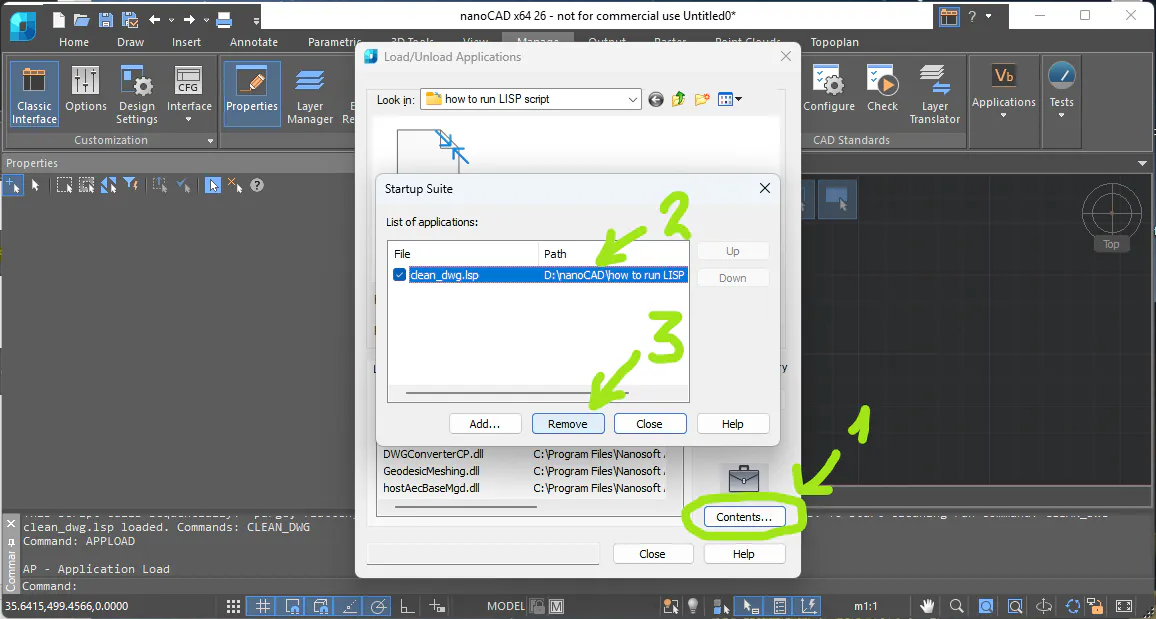
If you don’t need anymore to execute this script on start of the platform, then call APPLOAD -> Contents, select your script and click “Remove”.
Other way to load your script file is using command LSP:
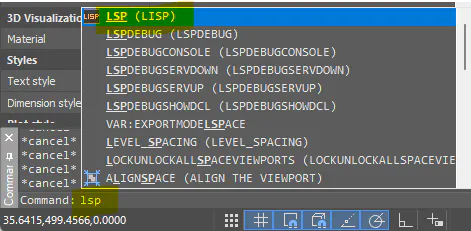
This time you need to specify path to script file manually:

File ncad.lsp executes automatically when platform starts.
You can find it in:
C:\Program Files\Nanosoft AS\nanoCAD x64 26.0 <-your current version>
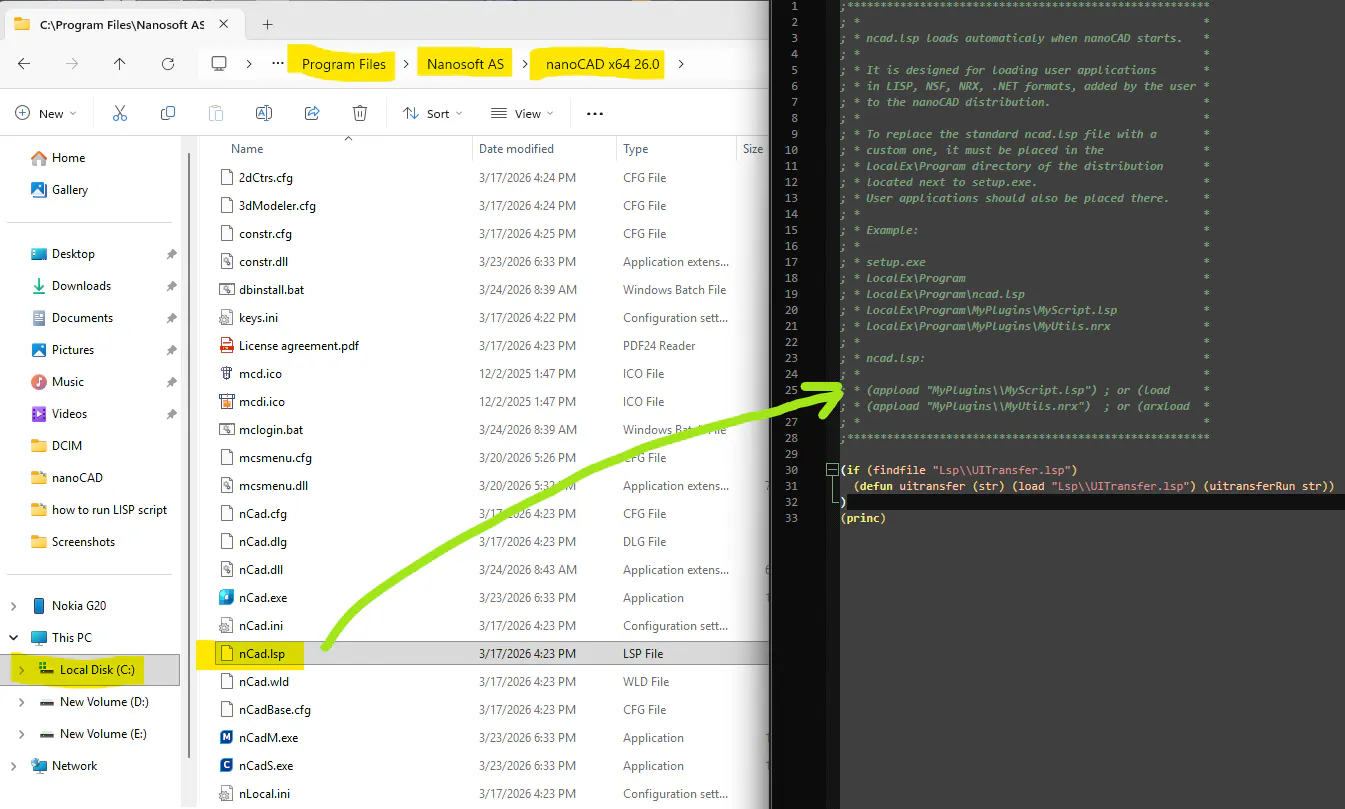
Be very cautious! Mistakes in this file might affect errors in starting nanoCAD Platform!
As an example, I asked this script to write in console “HELLO WORLD!’ and load clean_dwg.lsp script.
Notice type of slashes that was used here!
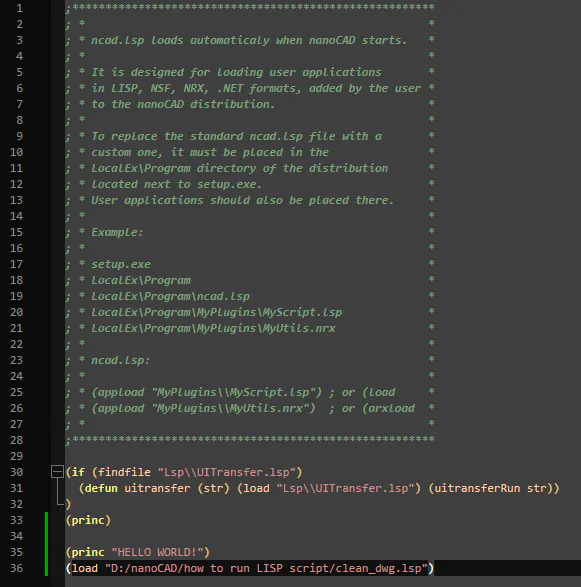
After restart of the nanoCAD Platform you will see that it greets you with “HELLO WORLD!” and loaded and executed clean_dwg.lsp script file.

These are main ways to load your LISP scripts into nanoCAD Platform.


