


Virtual commands allow you to execute a command with predefined parameters (options) or execute several commands one after another using only one virtual command. This virtual command you create and describe yourself using "customize interface" command. This is like macros in other software. Main purpose is to reduce routine operations and minimize human errors.
For example: I want to create one virtual command that will check drawings for errors and fix them if possible. This might be useful when opening new drawing that was not created by me so I don't know in what software it was created originally and while working with it some issues appears - like low performance, freezing etc.
This cleaning command will call next nanoCAD Platform utilities:
· -purge: to clear waste objects. This is same as just PURGE, but adding “-“ in front of the command use it’s sibling that works using only command line.
· Flatten: The command is intended for projecting selected objects that have Z-coordinates other than 0 onto the XOY plane of a custom coordinate system. Note, that this command does not work on objects located on frozen and locked layers.
· Audit: Used to check a drawing for internal database errors and fix some of them automatically.
· AuditGeometry: This utility will be called twice, first to “audit_Z_coordinates”, second to "audit_hatches”. Audit_Z_coordinates - intended to identify and fix problematic drawing objects located outside the range 1e+20 along Z axis. Audit_Hatches - Auditing the correct display of hatches within the boundaries of contours.
When calling these utilities in command line, check and save what parameters it asked to select.
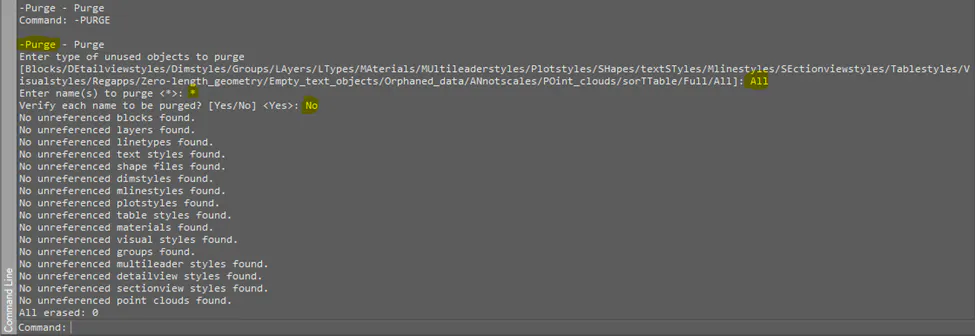
For -PURGE utility:
From all of the variants it suggested selecting “ALL”

Next – specifying all names to be purged, i.e. “*”

Finally confirm that there is no need to verify each name to be purged.
Note, that this is a generic example and you need to adjust your commands with your particular needs.

So, to execute this command I need to specify free parameters (options):
If it was a LISP command, then it might be something like: (command "-purge" "All" "*" "No")
Let’s check in command line if it works:
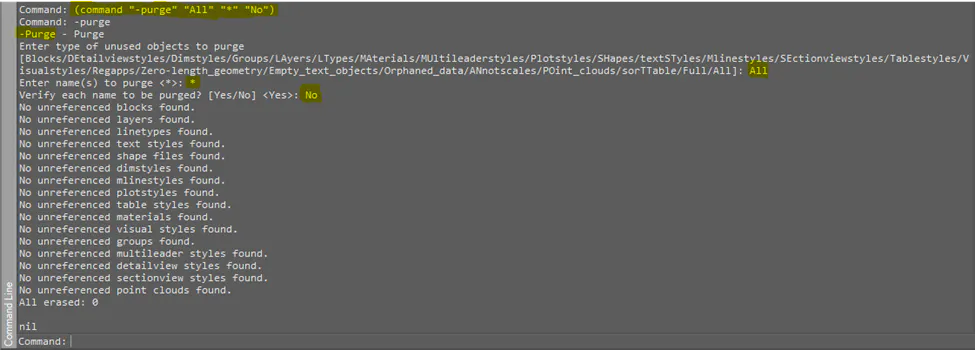
Running this script is same as if I’d call -purge command manually using specified parameters.
Next for FLATTEN utility:
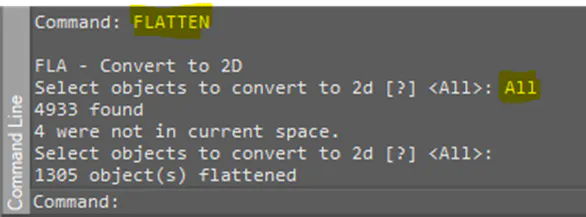
To execute this command, I need to specify objects, i.e. All in this case and then press Enter. In LISP it’d be (command "flatten" "All" "")
Sending Enter is just writing empty parameter here.
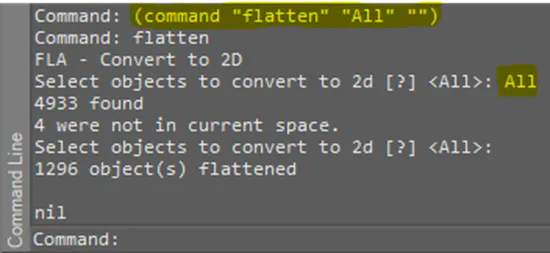
So, it’s working.
Same for Audit:
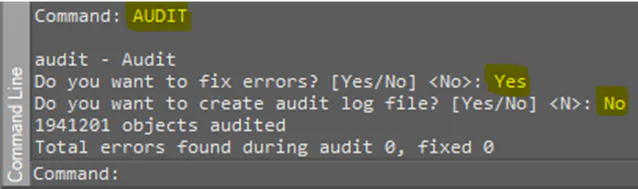
Specifying here that I do want to fix the errors if found and don’t want to create log file. Note, that your particular case might be different and, for example, you’d like to create log file for each case.
LISP script for this: (command "audit" "Yes" "No")
Don’t forget to check that it’s working:
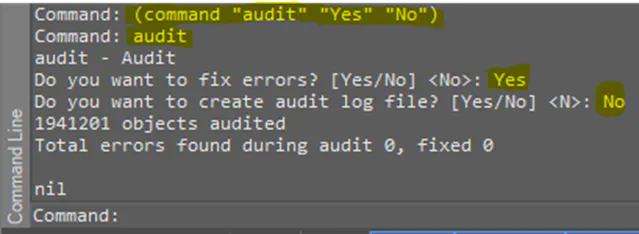
And finally, for AuditGeometry.
Firstly with “audit_Z_coordinates”:

Lisp variant for this: (command "auditgeometry" "audit_Z_coordinates" "Yes(fix_errors)")
And again - don’t forget to check that it is working:

Secondly with “audit_hatches”:

LISP variant for this: (command "auditgeometry" "audit_hatches" "Yes(fix_errors)")
Check that script is working:

Now, when I understand what commands and what parameters (options) I want to execute, let’s create virtual command, that will execute them all using only one to be created.
1. Call command INTERFACE
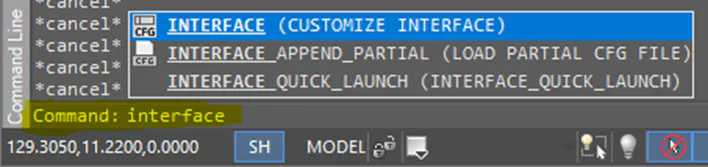
2. Right mouse button click in the commands list window
Select “Create virtual command”
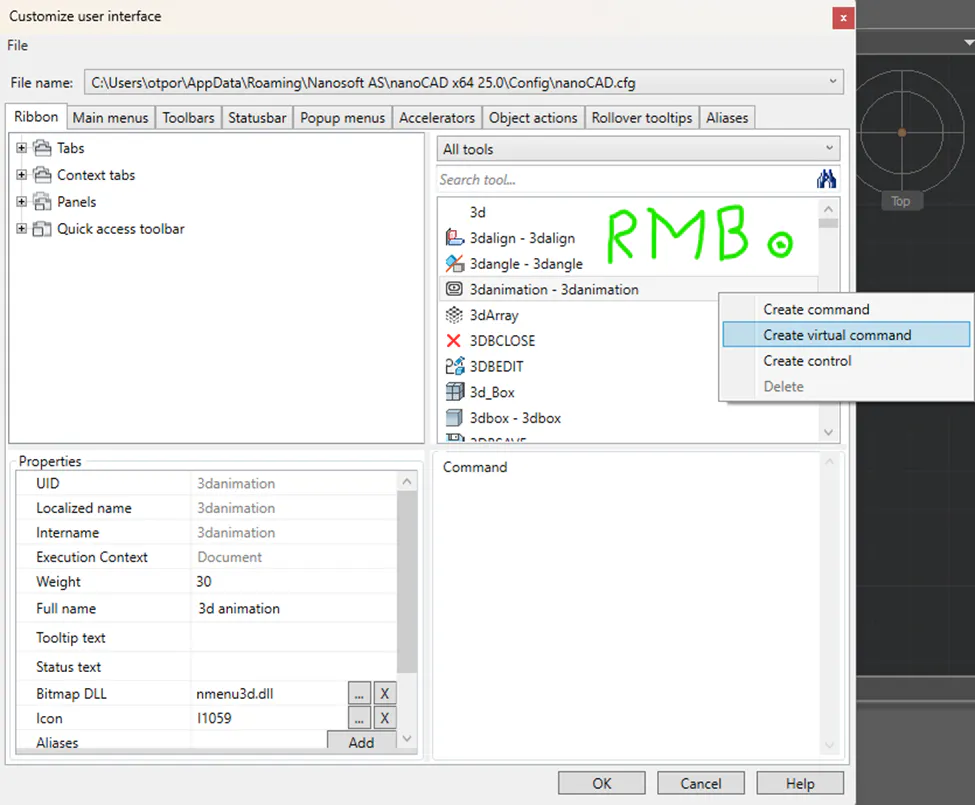
3. Fill in the fields in “Create virtual command” dialog window:
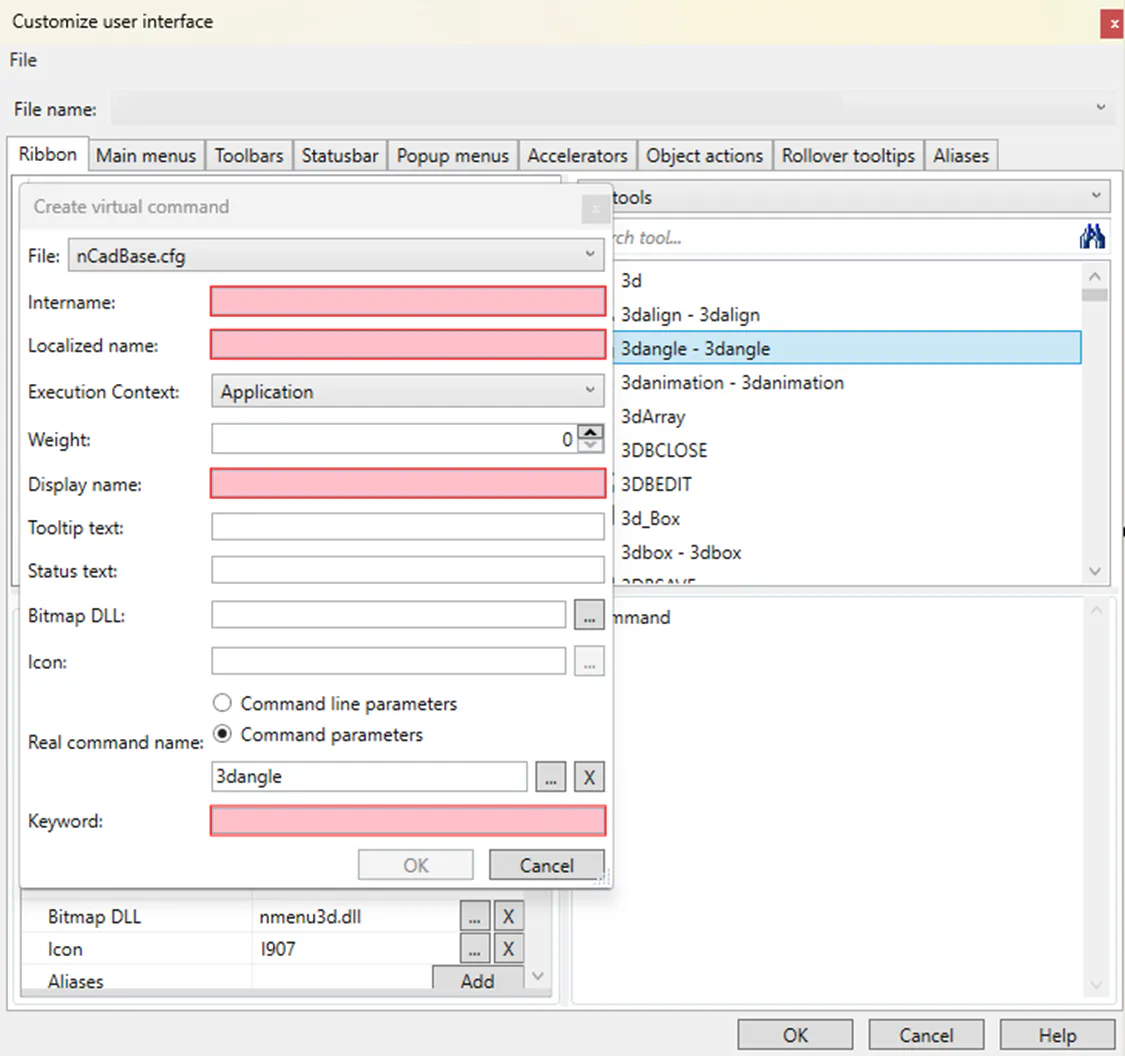
Intername: name of loaded command.
It can contain the following symbols: A-Z, 0-9, ), (, _, #, $. No spaces.
Localized name: name in specific for your region language.
It can contain the following symbols: A-Z, 0-9, ), (, _, #, $. No spaces.
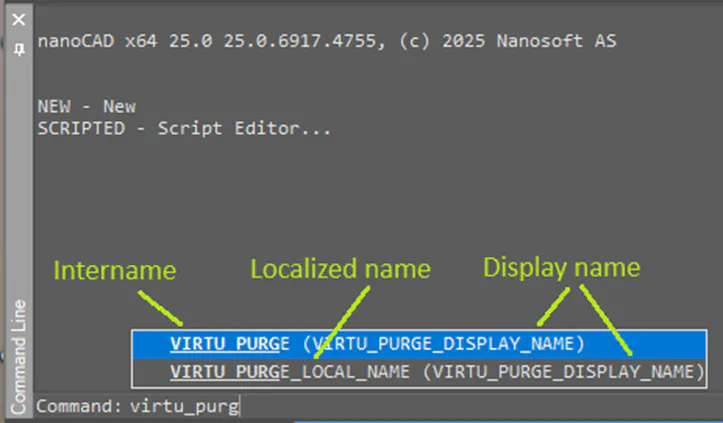
This is like alias for intername. You can later call this command either with it’s intername or localized name.
Display name: name of command, displayed in menu.
For example:
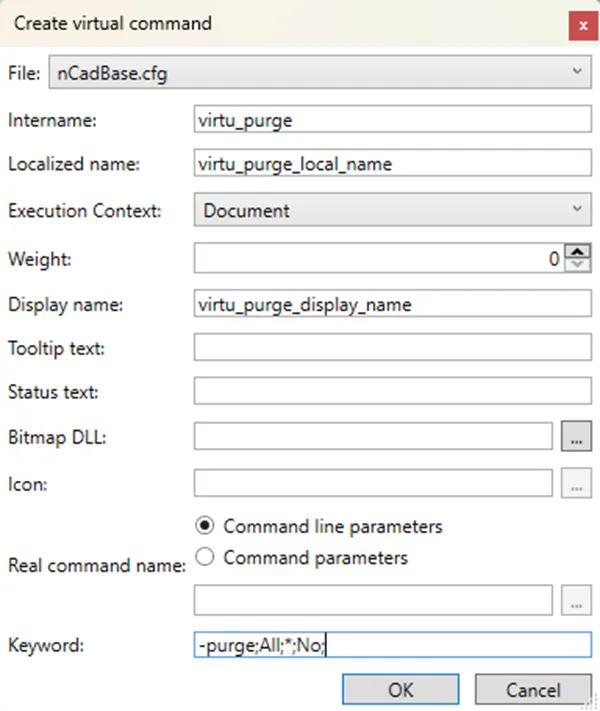
4. Select “Execution Context” = Document, as this virtual command supposed to work for particular document, that will be open while command executed.
5. Select “Command line parameters”
6. Insert into field “Keywords” commands and their parameters you want to execute with your shortcut command. Note, that one semicolon is equivalent to ENTER.
In my case I want to execute commands that are described in these scripts:
(command "-purge" "All" "*" "No")
(command "flatten" "All" "")
(command "audit" "Yes" "No")
(command "auditgeometry" "audit_Z_coordinates" "Yes(fix_errors)")
(command "auditgeometry" "audit_hatches" "Yes(fix_errors)")
Formatting it for virtual command style:
-purge;All;*;No;flatten;All;;audit;Yes;No;auditgeometry;audit_Z_coordinates;Yes(fix_errors);auditgeometry;audit_hatches;Yes(fix_errors);
Notice here, that command FLATTEN has two semicolons after “All” attribute. This is because after input All I need to click extra ENTER to continue executing command, this is equivalent to empty attribute in LISP variant for this command: "".
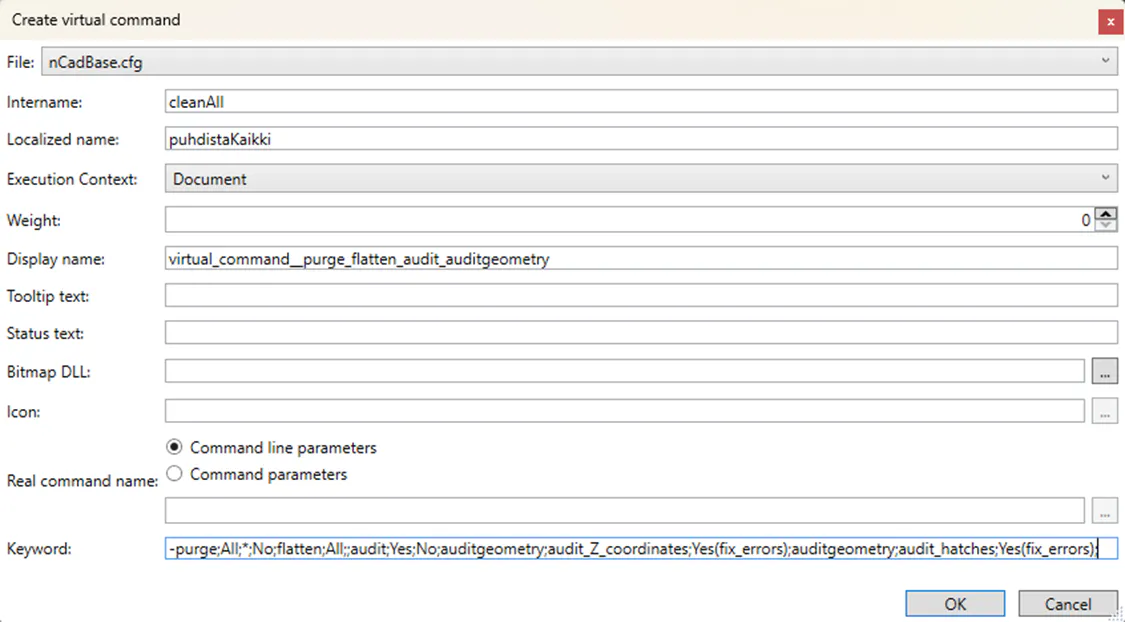
Click OK and confirm that you want to save the changes.
Restart the platform and check that it’s working.
Notice, that I can call my new command using it’s intername or localized name equally:


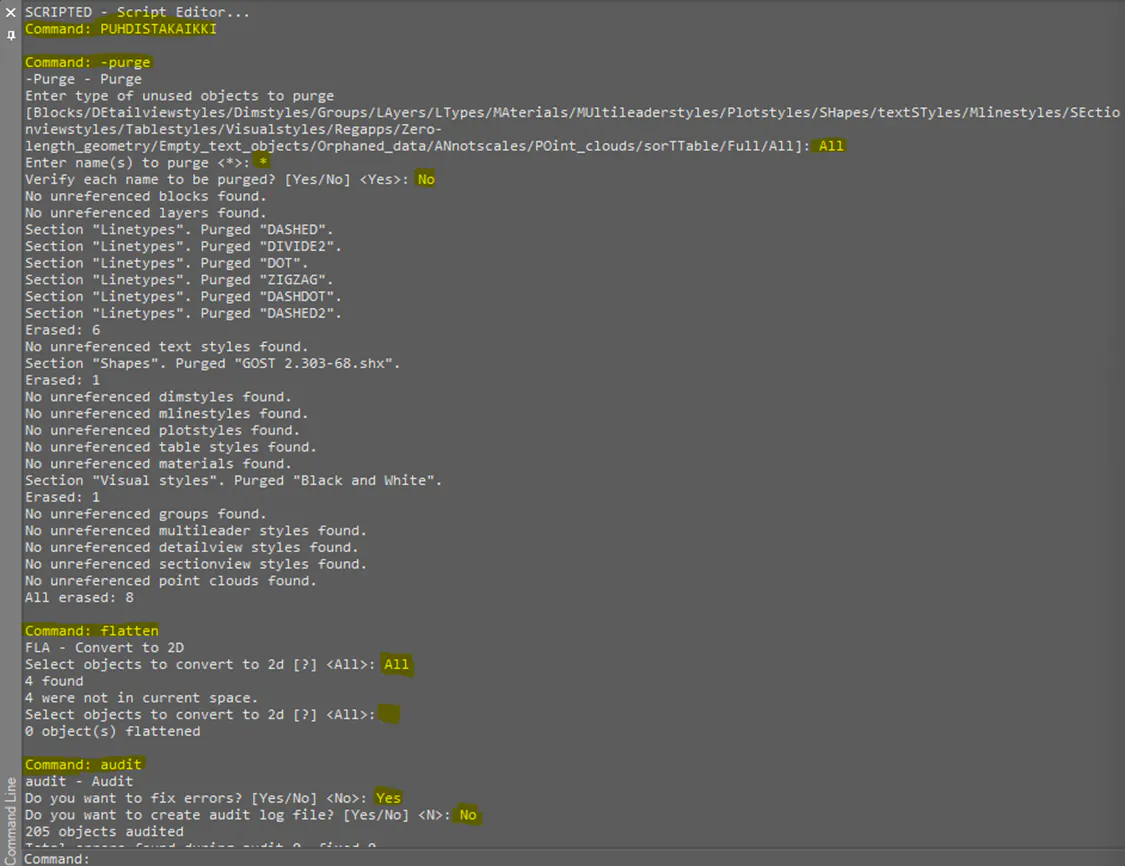
Call the command and check, that there are no errors and all commands executed one after another with appropriate attributes.
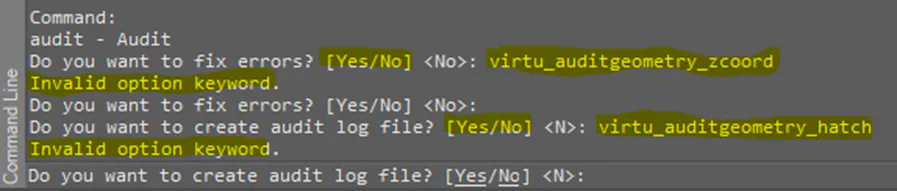
Example of errors in output because of wrong attributes (options):
In my case everything works perfectly:
So, was created one virtual command, that call several parameterized real commands one after another. This example might be useful, if you want to make it easier to clean your drawing or to solve some performance issues with executing just one virtual command.


